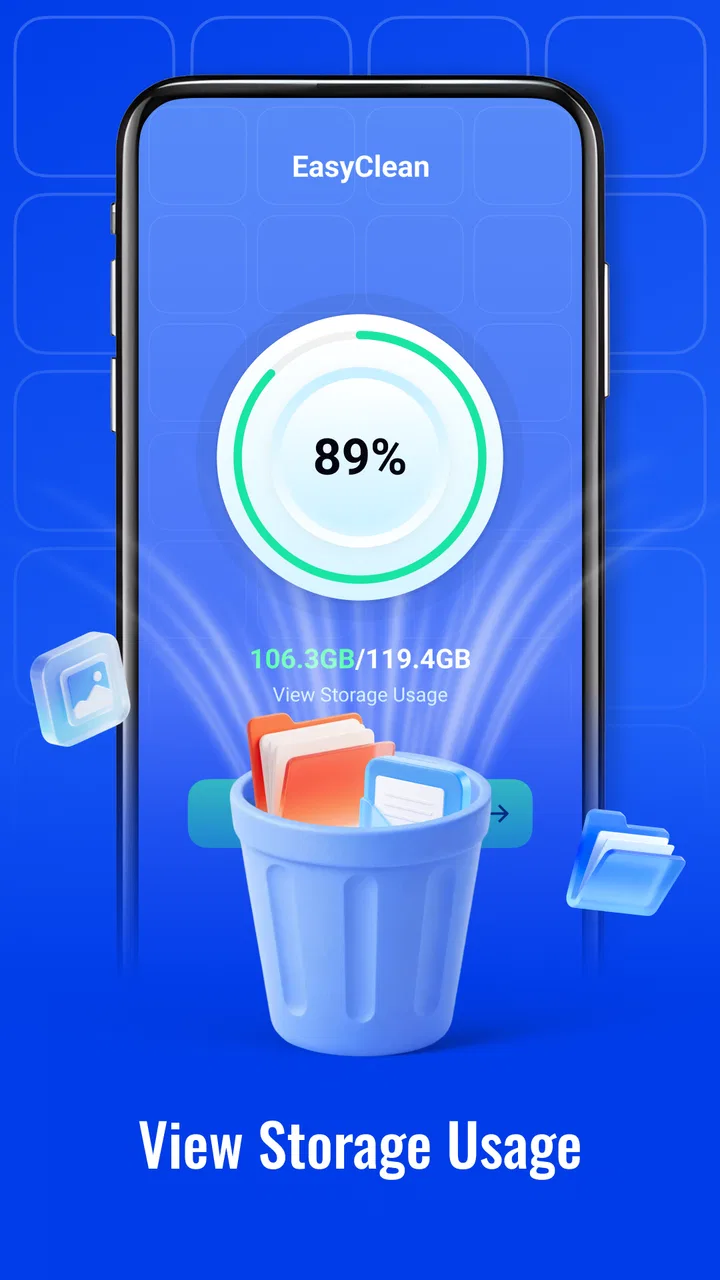
EasyClean
- 3.9
- Rating
- 100.00K
- Installs
- Free
- Price

 Analysis by App-foxy
EasyClean is a small productivity app from BlackGoat aimed at one uncomplicated task: helping me review temporary and leftover files instead of leaving them scattered across my phone. I found the appeal in that narrow focus. It is not trying to be a complete file manager, backup service, security suite, or storage dashboard. It is a tool for the moments when my phone feels cluttered and I want to inspect disposable material before deciding what to do with it.
That limited purpose also makes the app easier to judge honestly. A cleaner needs to be understandable before it is aggressive. I want to know what I am about to remove, whether I can stop the process, and whether the app gives me a meaningful choice rather than turning a routine cleanup into a one-tap gamble. In my view, trust starts with visible decisions, not with dramatic promises about performance.
What EasyClean feels like in everyday use
EasyClean sits in the productivity category, although its practical role is closer to routine phone maintenance. The developer is BlackGoat, and the app is free with an Everyone content rating. Its current version is 1.0.0, and it runs on Android 7.0 or later, which gives it a broad potential audience among people using older phones as well as newer devices.
You May Also Like

 Pandora - Music & Podcasts
Pandora’s Music Is Easy to Start, but Harder to Recover
Pandora’s strength is its low-effort path from a seed to a station. Its weak spot is how much confidence it asks you to place in connection, setup, and quiet recovery.

 8 Ball Pool
 Is Built on Rivalries, Rematches, and Routine
A close look at the rivalries, rematches, shared routines, and unanswered safety questions that turn a quick pool match into a persistent mobile community.

 Samsung Music
’s Quiet Strength Is Playing What You Already Own
Its reach comes less from spectacle than from dependable access to a personal library. That simplicity is both the app’s strongest retention engine and its ceiling.

 AccuWeather: Weather Radar
AccuWeather Review: A Quick, Clear Forecast for Everyday Decisions
For everyday plans, the best forecast is the one you can understand quickly. AccuWeather makes rain timing, radar, and local conditions easy to act on, with a few trade-offs.

 Hill Climb Racing
Why Hill Climb Racing Still Turns Crashes Into One More Run
A tiny car, a bumpy hill and one more upgrade: Hill Climb Racing keeps resurfacing because its simple chaos makes every near-miss feel personal.

 AliExpress - Shopping App
AliExpress Makes Global Shopping Feel Personal, but Shoppers Bear the Risk
AliExpress turns a global marketplace into a pocket-sized discovery engine. Its reach is useful, its shopping loop compelling, and its trade-offs easy to miss.
More From Our News Desk
View All News


The first thing I noticed is that the concept is easy to explain to another person. If a friend asked what it does, I would say: open it when you want to review temporary and residual files, then decide which items deserve attention. That is much clearer than an all-purpose optimizer that mixes cleaning with unrelated claims about speed, battery life, cooling, or security.
The app has attracted over 100 thousand installs, alongside a 4.0 average from around 177 ratings and 14 written reviews. Those figures suggest that people are finding it useful, but they also tell me to keep expectations measured. This is not a mature, extensively documented utility that I would treat as an unquestionable authority over every file on a phone. I would use it as a review aid and keep my own judgement in the loop.
A realistic example is a phone used for messaging, browsing, and downloading documents. After several weeks, temporary material can build up around ordinary activity: previews, working files, and remnants left behind by apps. When storage becomes tight, EasyClean gives me a place to begin investigating rather than forcing me to open each app separately and search through folders manually.
Why the narrow scope is useful
Many cleaning alternatives try to do too much. They may combine storage analysis with notifications, battery tools, antivirus language, duplicate detection, or promotional screens. That can make the interface busier and make it harder to understand which action is actually relevant. EasyClean’s stated focus is more restrained, and I prefer that when I am handling files that may be inconvenient to recreate.
That restraint is also a limitation. Someone looking for a complete storage visualizer, a duplicate-photo workflow, a backup tool, or a full file browser should not assume this app replaces those tools. Its value comes from handling temporary and residual material, not from becoming the central control panel for every piece of data on the device.
Trust begins with what the app lets me see
A cleaner app operates close to personal information, even when the files it targets are technically temporary. A cache can still contain traces of browsing, media previews, downloaded work, or an unfinished task. For that reason, I would not judge EasyClean only by whether it finds a large amount of removable material. I would judge it by how clearly it presents the cleanup decision.
Before confirming any removal, I would look for understandable labels, a way to inspect the selected group, and a clear distinction between disposable leftovers and files I intentionally saved. Those checks are especially important when the phone belongs to someone who shares it with family members, uses it for work, or keeps offline content for travel.
The safest habit is to treat every suggested cleanup as a recommendation rather than an instruction. I would review the categories first, deselect anything connected to an active project, and only then proceed. That approach takes slightly longer than pressing a large “clean” button, but it gives the app an appropriate role: assistant, not final authority.
Permissions and data-sensitive moments
File-cleaning software naturally needs access related to storage, because it cannot review residual material without seeing relevant areas of the device. Still, access is not the same as permission to remove everything. I would pay attention to the Android prompts shown during setup and use, and I would grant only what is necessary for the task presented on screen.
I also recommend checking the app’s permissions later through Android settings, especially after an update. This is a practical habit for any utility that works with local files. If a permission no longer makes sense for the way I use EasyClean, I would review whether it can be withdrawn without affecting the functions I actually need.
There is another sensitive moment after a scan. A list of residual files can reveal patterns about how the phone is used, even if the items themselves are not valuable. I would avoid handing the phone to someone else while the results are open, and I would not assume that a cleanup screen is private simply because it contains no photographs or messages.
When privacy matters, I would also avoid using the app casually on a device containing confidential work material until I had read the visible permission prompts and any privacy information presented by the app or the operating system. That is not a criticism unique to EasyClean; it is the sensible standard for any tool that examines storage.
How I would use it without over-cleaning
My preferred workflow would be deliberately cautious. I would first close apps that are actively working, finish downloads, and make sure an important document is saved somewhere intentional. Then I would scan with EasyClean, read the result, and separate obvious temporary material from anything whose purpose is unclear.
A useful rule is to clean in small rounds rather than treating the first scan as a complete spring-cleaning session. If I am trying to free space before a trip, I might remove only clearly disposable items, check whether the phone still behaves normally, and return later for a second review. This makes it easier to identify whether a missing item was actually needed.
I would be especially careful with residual files connected to apps that I plan to reopen immediately. Some applications rebuild temporary material automatically, while others may need to download it again or recreate a local state. Even when the cleanup is technically safe, the result can be slower startup, repeated downloads, or a less convenient offline experience.
That leads to one of the more important trade-offs: freeing storage is not always the same as improving the phone. If a category is small, deleting it may have little practical effect. If it is large but tied to an app I use every day, the space saving may come with a cost. EasyClean is most useful when I make that comparison instead of chasing the biggest number on the screen.
Who will get the most from it
I think EasyClean suits people who want a focused maintenance routine and do not enjoy navigating Android’s storage menus. It can be helpful for a family member who repeatedly asks why the phone is full, provided that person is willing to read the selections before confirming them. It also makes sense for users who prefer a dedicated cleaning screen over manually checking temporary areas inside individual apps.
The app may be a good fit for an older Android phone as well, since its minimum operating-system requirement reaches back to Android 7.0. That does not guarantee identical behavior on every device, but it does make the app relevant to people who are not using the newest hardware.
I would be more hesitant to recommend it to someone who wants automatic cleaning with no review at all. The more valuable the phone’s contents are, the less comfortable I am with blind automation. I would also point advanced users toward Android’s own storage controls or a well-established file manager when they need precise folder-level control, detailed sorting, or a complete view of personal files.
Where it differs from the usual alternatives
Android’s built-in storage tools have one major advantage: they are already part of the operating system and are closely tied to the device’s own settings. They can be the better choice when I need to understand which apps consume space or when I want to manage an application directly. EasyClean is more attractive when I want a separate, simpler place to review temporary and residual material.
A traditional file manager offers the opposite balance. It usually gives me more control over names, folders, and individual files, but it also demands more knowledge. That precision can prevent accidental removal when I understand the folder structure, yet it can confuse someone who only wants to clear harmless clutter. EasyClean’s focused purpose is easier to approach, while the file manager remains the stronger option for detailed inspection.
Broader optimization suites may provide more categories and extra tools, but their wider scope can create distractions. I would choose one only if I genuinely needed those additional functions and was comfortable reviewing a larger set of recommendations. For a simple cleanup session, a narrower app can be easier to trust because there are fewer unrelated decisions competing for attention.
Small habits that make the app safer
Run a review before a major download or update, not during one, so temporary work is less likely to be mistaken for finished clutter.
Keep screenshots, offline media, exported documents, and active project folders out of a rushed cleanup session, even if they appear near disposable material.
After cleaning, reopen the apps that matter most and confirm that important offline content and current tasks still behave as expected.
Use Android’s permission settings as a regular checkpoint rather than granting access once and forgetting about it.
These habits are more important than trying to maximize the amount removed. A good cleanup is one that solves a storage problem without creating a recovery problem. In my experience, the best result is often a smaller, carefully chosen cleanup rather than an impressive-looking sweep.
What I would still keep under my control
EasyClean does not change the basic responsibility that comes with deleting files. I would not use it as a substitute for backups, and I would not treat a successful cleanup as proof that my phone is secure or fully optimized. Those are separate concerns. A cleaner can reduce clutter, but it cannot replace a sensible backup routine or careful permission management.
I would also avoid judging the app by a single session. Temporary files can return because the apps that created them are still in use. If the same categories reappear, that may be normal rather than evidence that the cleaner failed. The practical question is whether the app helps me identify material I genuinely no longer need and remove it with confidence.
Because the current version is 1.0.0, I would approach it as a relatively early release and pay attention to how the interface develops. A focused first version can be perfectly useful, but long-term confidence depends on clear updates, stable behavior, and continued respect for user choices. I would install it from the official app source and read each Android permission request instead of relying on the app’s category or popularity alone.
My cautious verdict
After looking at EasyClean as a practical storage utility, I see a straightforward app with a sensible use case: review temporary and residual files without turning the phone into a maze of maintenance tools. Its free price removes the barrier to trying it, and the Everyone rating makes it approachable for a broad audience. The strongest reason to use it is not a promise of dramatic speed; it is the convenience of having a focused cleanup workflow.
My recommendation comes with a condition: keep the final decision in your hands. Read the categories, protect anything connected to current work or offline use, and treat storage access as something worth checking. If you want a simple starting point for routine clutter, EasyClean is worth considering. If you need deep file control, backup features, or an all-in-one device-management suite, another option will likely serve you better.
For me, the app earns its place when I use it deliberately rather than automatically. EasyClean works best as a cautious review tool for everyday storage housekeeping, not as a magic button that should be trusted without inspection. That balance makes it a reasonable productivity download for users who value a clear, limited purpose and are willing to stay involved in the cleanup process.
FAQs for EasyClean
01What is EasyClean, and what does it do?
EasyClean is a mobile app designed to optimize your device's performance by cleaning junk files, managing storage, and improving speed. It offers features such as cache cleaning, RAM boosting, and battery optimization, helping users maintain their device's efficiency. It's available for both Android and iOS platforms.
02Is EasyClean safe to use on my device?
Yes, EasyClean is safe to use. The app does not require access to sensitive personal data and adheres to privacy guidelines. It focuses on optimizing device performance without harming system files or user data. However, downloading from official app stores is recommended to ensure authenticity.
03Does EasyClean offer any premium features?
EasyClean offers both free and premium versions. The free version includes basic cleaning and optimization tools, while the premium version provides advanced features like automatic cleaning schedules, deep cleaning options, and ad-free experiences. Users can choose the version that best suits their needs.
04How often should I use EasyClean to maintain my device?
For optimal performance, it's recommended to use EasyClean at least once a week. Regular cleaning helps remove accumulated junk files and frees up storage space, ensuring your device runs smoothly. The app also allows you to set up automated cleaning schedules for convenience.
05Can EasyClean improve my device’s battery life?
Yes, EasyClean includes features specifically designed to enhance battery performance. By identifying and managing power-draining apps, adjusting device settings, and optimizing background processes, EasyClean helps extend battery life, allowing you to use your device for longer periods between charges.
Pros
- User-friendly interface that's easy to navigate.
- Offers quick cleanup with one-tap optimization.
- Effective in freeing up storage space.
- Boosts device performance noticeably.
- Includes battery-saving features.
Cons
- Contains ads that can be disruptive.
- Limited features available in the free version.
- Occasional false readings on storage usage.
- Requires frequent updates for optimal performance.
- May drain battery during intensive scans.

EasyClean
Gallery